Custom Patch Maker: Turn Your Idea or Logo Into a Real Patch
Send a logo, sketch or idea. Approve a free proof in 24 hours.
Create custom patches from any logo, sketch or written idea. We digitize your art. A free proof arrives in 24 hours. Then we make it to order.
4 STEPS
Design Your Own Patch in 4 Steps, From Idea to Approved Proof
You bring the idea. We handle the stitching. Four steps take you from file to approved proof.
Step 1: Send a Logo, Sketch or Written Idea
Send what you have. A vector logo works best. A clear sketch can work too. Want to create custom patches from a rough idea? Start there.
Our custom patch maker process starts when you upload. Tell us the size, the garment and your colors. Mention how many patches you want, and any deadline.
| Item | Why it helps | Example |
|---|---|---|
| Artwork | Source of the design | Vector logo file |
| Size | Sets how small text can go | 3 inches wide |
| Colors | Drives thread matching | Pantone numbers |
| Quantity | Sets your quote | 50 patches |
| Deadline | Decides standard or rush | Launch day |
- Your artwork file or sketch
- Wanted size and quantity
- Colors, ideally Pantone numbers
- The garment or item it goes on
- Any deadline you must meet
Step 2: We Digitise Your Art and Build a Free Proof
Digitizing turns art into stitch directions. Think of it as a map for the machine. As a custom patch creator, we build that map. Then you get a digital proof in Pantone-matched colors.
Stitch direction, stitch type and thread colors all get set here. Dense areas typically get fill stitches. Thin lines and borders typically get satin stitches. You never need to learn any of it.
- A stitch file built from your art
- Thread colors matched to Pantone
- A digital mockup for your approval
Step 3: Revise Until Every Detail Is Right
Check the proof closely. Look at spelling first. Then check colors, spacing and border. Revisions are unlimited and free.
| Check | What to look for |
|---|---|
| Spelling | Every letter and number |
| Colors | Match to your brand |
| Spacing | Even gaps between letters |
| Border | Style and thickness |
| Size | Text still readable |
Ask for any change. Move the text. Swap a color. Resize a shape. Each round is free, so take your time. Read every word aloud. Check names and numbers twice.
- Spelling and numbers
- Color match against your brand
- Text size and spacing
- Border style and shape
Step 4: Approve the Proof and We Start Production
Approve the proof and production begins. Standard orders take 10 to 14 business days. Rush takes 5 business days. Both count from your approval.
- Digital proof
- A mockup of your patch in Pantone-matched colors.
- Revision
- Any change you ask for after seeing the proof.
- Approval
- Your sign-off that starts production.
- Rush
- A faster 5 business day option from approval.
- Standard: 10 to 14 business days
- Rush: 5 business days from proof approval
- Shipping is duty-free worldwide
Nothing starts early. We never run production before you approve. You stay in control until you approve. That is the whole point of the proof. If anything looks off, say so before you sign off.
| When | What happens | Who acts |
|---|---|---|
| Day 0 | You send artwork | You |
| Within 24 hours | Free digital proof arrives | We |
| Any time | You request changes | You |
| Approval | You approve the proof | You |
| 10 to 14 business days | Patches are produced | We |
| After production | Duty-free delivery | We |
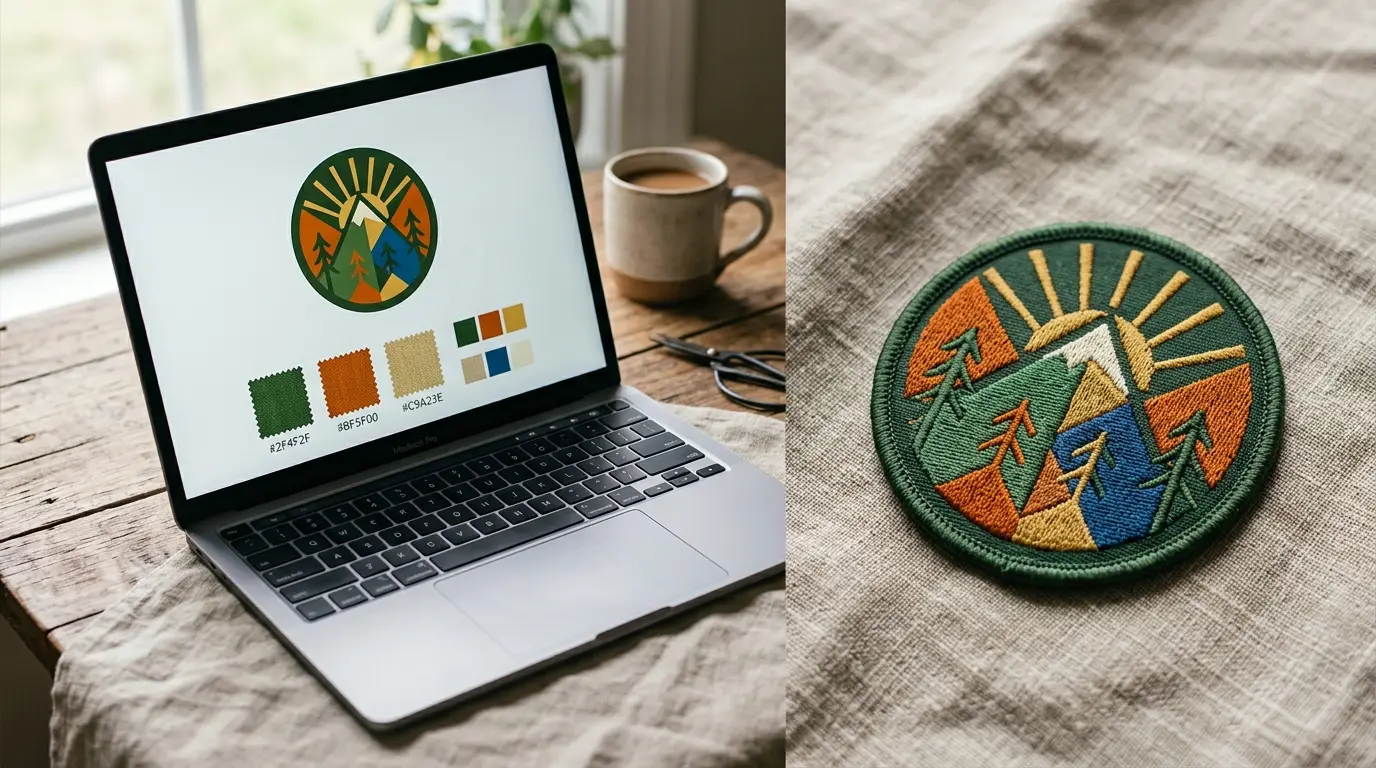
Gather your references before you start. A phone photo of a sketch is enough. Add notes on colors and size. Clear notes cut the questions we need to ask.
ARTWORK FILES
Artwork Files for Custom Patch Making: Formats and Resolution
Good files make good patches. Bad files cost you a revision round. Here is what we accept.
| Problem | Result | Fix |
|---|---|---|
| Fonts not outlined | Wrong letters appear | Convert text to outlines |
| Hidden layers | Stray shapes show up | Delete unused layers |
| Tiny file size | Blurry edges | Send the original |
| RGB colors only | Color shifts | Add Pantone numbers |
| Cropped art | Missing parts | Send the full artboard |
Think about your file before you send it. A few minutes of prep saves days of back and forth.
File Formats We Accept, From AI to TIF
Every custom patch creator has a favorite format. Ours are AI, EPS and PDF. The rest are accepted too.
| Format | Accepted | Best for | Note |
|---|---|---|---|
| AI | Yes, preferred | Vector logos | Outline your fonts |
| EPS | Yes, preferred | Vector logos | Outline your fonts |
| Yes, preferred | Vector or layouts | Keep vector layers | |
| SVG | Yes | Vector art | Export clean paths |
| PNG | Yes | Clean raster art | Use high resolution |
| JPG | Yes | Photos, simple art | Avoid heavy compression |
| PSD | Yes | Layered art | Flatten if unsure |
| BMP | Yes | Simple raster art | Use high resolution |
| TIF | Yes | High-quality raster | Use high resolution |
- DPI
- Dots per inch. Higher means a sharper raster image.
- Vector
- Art made of paths that scale without blur.
- Raster
- Art made of pixels that blur when enlarged.
- Outlined font
- Text converted to shapes so it never swaps.
Not sure which file you have? Check the extension. AI, EPS and SVG are almost always vector. PNG, JPG, BMP and TIF are raster. PDF can hold either.
Vector or Raster: Which Is Better for a Patch?
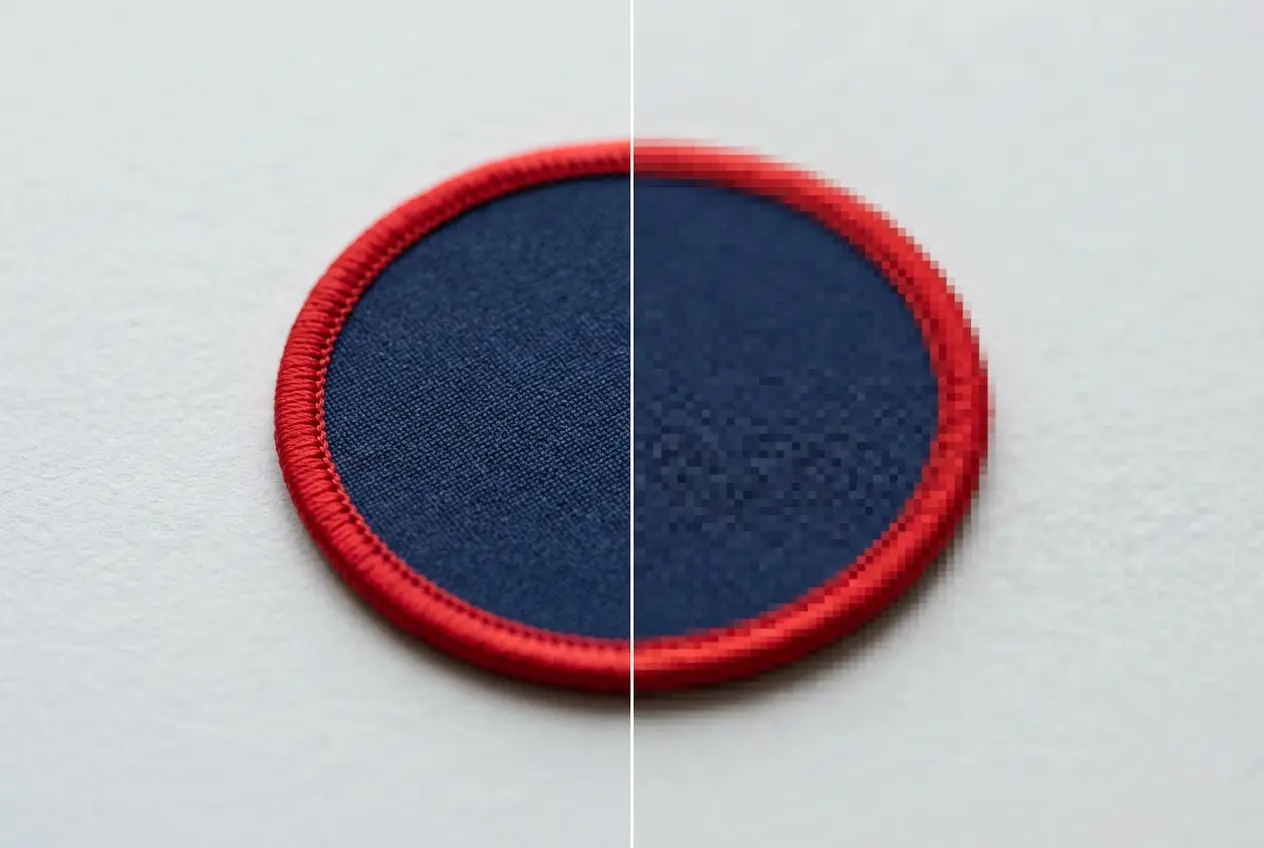
Vector files scale without loss. Raster files can blur when enlarged. For patches, vector is the safer choice.
Raster art still works if the resolution is high. Many makers suggest about 300 DPI at final size. That is general guidance, not a rule. Your proof shows what we can do with your file.
| File | Safe choice | Risk |
|---|---|---|
| Vector | Any size | Low |
| Raster at 300 DPI | Final size or smaller | Medium |
| Web image at 72 DPI | Small patches only | High |
| Screenshot | Avoid | Very high |
Pros
- Sharp edges at any size
- Easy to edit colors
- Clean paths speed digitizing
Limits
- Photos do not convert well
- Needs vector software
- Old logos may exist only as raster
- Outline all fonts before export.
- Remove stray points and hidden layers.
- Use solid colors, not gradients.
- Save a copy at full size.
- Name colors, or add Pantone numbers.
Export from your design software. Do not screenshot your screen. Screenshots lose sharpness and color.
DESIGN RULES
Custom Patch Design Rules for Clean Stitching
Thread is not ink. It has width, and it cannot blend. These rules keep your art clean.
| Stitch | Used for | Look |
|---|---|---|
| Fill | Large shapes | Dense and flat |
| Satin | Letters and borders | Smooth and shiny |
| Running | Fine outlines | Thin single line |
Every rule below comes from how stitching works. Thread has thickness. Needles make holes. Dense stitching pulls the fabric. Good design works with all three.
Text Height and Line Weight on a Stitched Patch
Small text fills in with thread. Thin lines vanish. The numbers below are general guidance. Your proof shows the real result.
| Element | Guideline | Why |
|---|---|---|
| Text height | About 4 to 6 mm minimum | Thread fills tiny letters |
| Line weight | About 1 mm minimum | Thinner lines disappear |
| Letter spacing | About 1 to 2 mm | Letters merge when tight |
| Font style | Plain sans-serif | Thin serifs may close up |
| Gaps between shapes | About 1 mm | Gaps close with thread |
| Corner detail | Round, not sharp | Sharp points blunt |
Serif fonts with hairline strokes suffer most. Bold sans-serif letters survive best. Test a few fonts at final size before you commit.
Color count needs a plan too. Fewer colors give a cleaner patch. Ask us how many colors your type and size handle well.
Gradients, Shadows and Photos: What Stitches and What Does Not
Thread comes in solid colors. It cannot fade from one shade to another. Photos need a different patch type.
Shadows work the same way. A soft shadow becomes a hard band of thread. Skip it, or draw it as a solid shape. Highlights follow the same rule.
| Stitches well | Does not stitch well |
|---|---|
| Solid color blocks | Smooth gradients |
| Bold outlines | Soft shadows |
| Clear text | Tiny text |
| Simple shapes | Photos |
| Strong contrast | Faint tints |
| Clear gaps | Touching details |
A photo can still become a patch. Choose a printed build, or simplify the photo into flat color blocks. Both routes work. Pick by how much realism you need.
Contrast Rules That Keep Artwork Readable
- Pair light thread with dark thread.
- Avoid two mid-tones side by side.
- Outline pale text with a dark border.
- Check the proof in black and white.
- Keep the background a single color.
| Pair | Result | Advice |
|---|---|---|
| Navy on white | Strong | Safe choice |
| Black on yellow | Strong | Bold and clear |
| Yellow on white | Weak | Add a dark outline |
| Gray on silver | Weak | Avoid |
| White on dark green | Strong | Good for text |
| Red on blue | Vibrates | Add a separating border |
Contrast matters more than color choice. A pale yellow on white vanishes. A deep navy on white pops. Check your design at thumbnail size to be sure. If it reads small, it reads on thread.
Where to Put Fine Detail on Your Design
Place fine detail in the center, away from the border. Keep text on straight lines. Give small elements room to breathe. Crowded detail turns into a blob of thread. Spread details out or drop some.
- Fine detail near the center
- Bold shapes near the edge
- Text on straight baselines
- One focal point only
Detail you cannot give up needs a different build. A woven patch can hold finer lines than embroidery. See woven patch details if your art is small and fine.
LOGO TO PATCH
How to Turn a Logo, Image or Sketch Into a Patch
Your source decides your path. Start with what you have. We guide the rest.
Logo to Patch: Simplify First, Then Send the Vector
Want to create your own patch from a logo? Strip it down first. Remove shadows and tiny taglines. Then send the vector file.
- Remove shadows and glows.
- Delete tiny taglines.
- Merge near-identical colors.
- Thicken thin outlines.
- Save as vector with fonts outlined.
| Problem | Effect | Fix |
|---|---|---|
| Tiny tagline | Unreadable thread | Delete or enlarge |
| Soft shadow | Muddy edges | Remove |
| Thin outline | Vanishes | Thicken |
| Many shades | Costly, busy | Merge colors |
A simple logo stitches best. A busy logo may need a redraw. Your proof shows how it translates.
Photo or Image to Patch: Pick the Right Patch Type
Photos hold thousands of shades. Thread holds a few dozen. A printed patch keeps photo color. An embroidered patch simplifies it. Pick based on how real your image must look.
| Option | Result | Best when |
|---|---|---|
| Printed patch | Keeps photo color | Realism matters |
| Embroidered, simplified | Flat color blocks | Brand feel matters |
| Woven | Fine detail, fewer shades | Small portraits or text |
Compare the options in the patch type comparison. Or read about printed patch details.
Sketch or Written Idea to Patch: What to Include in Your Brief
- The shape and size you want.
- The exact text, spelled out.
- Your colors, with Pantone numbers if possible.
- The garment or item it goes on.
- The quantity and your deadline.
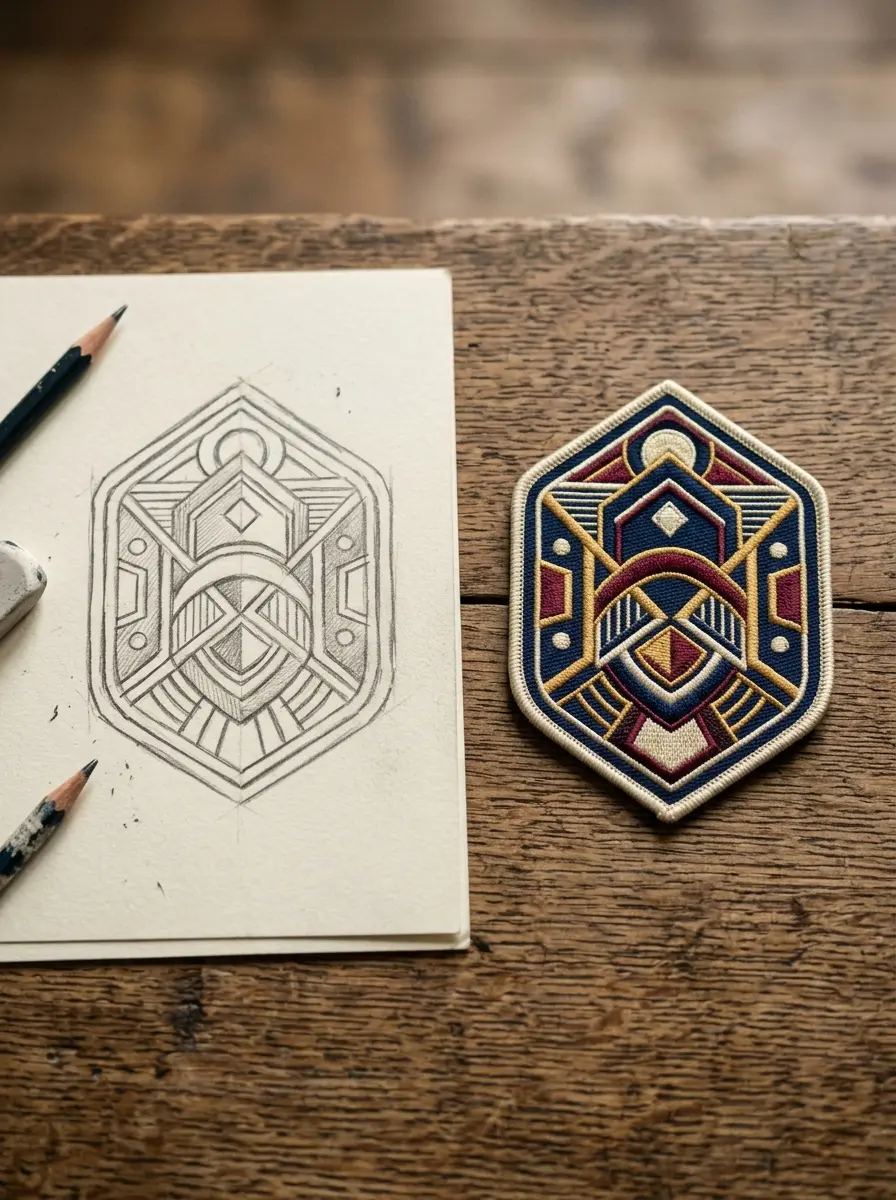
Sketches work when the idea is clear. Draw bold shapes. Write any text in block capitals. Add notes about colors beside the drawing.
- Say which item is the focus.
- Mark which text must stay.
- List colors you must match.
- Note what must not change.
A good brief saves a round of questions. Short and exact beats long and vague. Attach a photo of the sketch if it helps.
| Your art | Best patch type | Why |
|---|---|---|
| Vector logo | Embroidered or woven | Clean paths convert well |
| Photo | Printed | Keeps color range |
| Hand sketch | Embroidered | Bold shapes suit thread |
| Fine text logo | Woven | Holds small lines |
AI AND PATCHES
Can You Use AI to Design a Patch?
Yes, for ideas. AI tools make quick concepts. They rarely make stitch-ready files. A few checks fix that.
AI Concept Art to Patch-Ready File in 5 Checks
A custom patch generator can give you a starting point. Treat the output as a rough sketch. Then run the five checks below. We need clean art, not a pretty picture. Most AI images fail on text and tiny detail.
- Ask for flat vector style.
- Ask for a limited color palette.
- Ask for bold outlines.
- Ask for no text, then add it yourself.
- Ask for a simple centered composition.
These prompts give cleaner starting art. You still need the checks below. Add your own text in a vector editor. That keeps spelling under your control.
- Prompt
- The text instruction you give an AI image tool.
- Upscale
- Enlarging an image while adding pixels.
- Vectorize
- Tracing an image into clean paths.
- Flatten colors to a small set.
- Remove gradients and soft shadows.
- Enlarge text and thicken thin lines.
- Trace to a clean vector file.
- Check that you own the rights.
Pros
- Use AI for concept ideas
- Simplify the shapes
- Send a high-resolution file
Limits
- Send tiny detail
- Copy a brand you do not own
- Trust garbled AI text
| Problem | Why it matters | Fix |
|---|---|---|
| Garbled letters | Text will be wrong | Retype the text |
| Soft gradients | Thread cannot blend | Flatten to blocks |
| Tiny detail | Fills with thread | Remove or enlarge |
| Low resolution | Blurry trace | Upscale, then vectorize |
Treat AI images as rough sketches. They often add tiny details and blended shades. Those cannot be stitched. Redraw the idea with flat shapes and solid colors before sending it.
TYPE AND SIZE
Pick the Type, Size, Border and Backing for Your Design
Four choices shape the final look. Want to build your own patch with confidence? Make these choices early. Each one changes how your art looks once stitched.
Patch Type Decides How Much Detail Survives
Custom patch making starts with the right build. Each type holds a different level of detail. Match your art to the build. The table below shows how much detail each type holds.
- Embroidered: raised thread texture
- Woven: flat, fine detail
- PVC: soft rubber, weather resistant
- Printed: photo color on fabric
- Leather: debossed, simple emblems
| Type | Detail level | Best for | Learn more |
|---|---|---|---|
| Embroidered | Medium | Bold logos | Embroidered details |
| Woven | High | Small text | Woven details |
| PVC | Medium | Wet weather | PVC details |
| Printed | Very high | Photos | Printed details |
| Chenille | Low | Big letters | Chenille details |
| Leather | Low | Simple emblems | Leather details |
Size Decides Whether Your Text Can Be Read
Small patches cannot hold small text. Shrink the patch and your letters shrink too. Plan your size from your smallest word. Then add margin.
| Patch width | Works for | Text advice |
|---|---|---|
| About 1.5 inches | Name or icon | One short word |
| About 2.5 inches | Logo and short text | Two short lines |
| About 3.5 inches | Logo with text | Three short lines |
| About 4 inches or more | Back patch art | Full detail |
Border: Merrowed Edge or Heat-Cut Edge
| Art style | Border choice | Reason |
|---|---|---|
| Round or oval | Merrowed | Follows curves cleanly |
| Square or angled | Heat-cut | Keeps sharp corners |
| Full-bleed art | Heat-cut | Art reaches the edge |
| Classic look | Merrowed | Raised thread frame |
The border frames your design. It also protects the edge from fraying. Pick one that fits your shape.
Pros
- Merrowed: raised, wrapped thread edge
- Merrowed: classic patch look
- Merrowed: protects edges
Limits
- Heat-cut: flat, sealed edge
- Heat-cut: suits sharp corners
- Heat-cut: suits full-bleed art
Backing and Your Art: Iron-On, Sew-On or Velcro
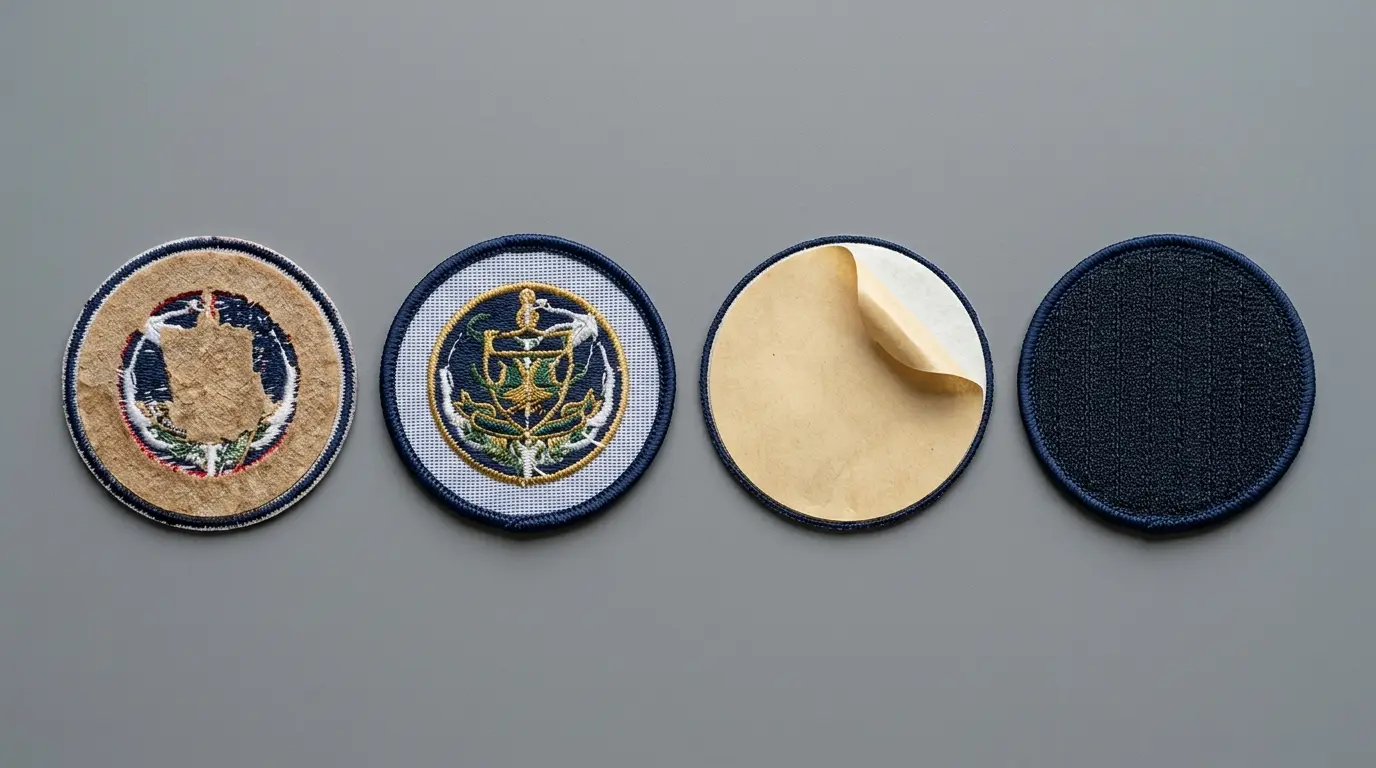
Any design can take any backing. Want to make your own iron on patch from your art? Pick iron-on backing, then check your fabric. Compare options in the backing guide.
- Iron-on: fast, best on cotton and denim
- Sew-on: strongest hold
- Hook and loop: removable
- Adhesive: temporary, no tools
| Backing | Works on | Watch for |
|---|---|---|
| Iron-on | Cotton, denim, canvas | Synthetics can melt |
| Sew-on | Almost any fabric | Needs thread and time |
| Hook and loop | Uniforms, bags | Needs a mating panel |
| Adhesive | Smooth, flat surfaces | Temporary hold |
Your art does not change with backing. Your fabric does decide which one holds. Delicate or stretch fabrics need extra thought.
DESIGNS BY USE
Design Custom Patches by Use: Caps, Uniforms, Bikers and Teams
Use shapes your art. Want to create custom patches for a team or a cap? Start with where it will sit.
Hat and Cap Designs: A Small, Curved Canvas
Cap fronts are small and curved. Keep art simple and text short. See hat patch ideas. Curved fronts distort wide designs.
- Keep art under three short words
- Choose bold, round shapes
- Leave room around the edge so nothing gets lost
Uniform and Morale Designs: Built for Hook-and-Loop
Uniform patches get swapped often. Hook-and-loop backing makes that easy. Read about military patch details. Rules vary by unit, so check yours first.
- Plan the size to match uniform rules
- Use strong color contrast so it reads from a distance
- Choose hook-and-loop backing
Biker and Club Back Designs: Big-Format Art
Back patches are large. They carry rockers, emblems and fine detail. See biker patch ideas. Large art tolerates finer lines than small art.
- Allow space for fine detail
- Use bold borders
- Plan the layout in sections
Team and Club Designs: Matching Sets From One Artwork
One artwork can serve a whole squad. Order the same design in every size you need. Learn more about team patch ideas. Keep every size on the same color palette.
- Keep one master artwork
- List sizes before you order
- Match colors across the set
Match your design to the garment. A great design in the wrong size still fails. Plan size, backing and placement together. Decide all three before you finalize art.
| Use | Common size | Common backing |
|---|---|---|
| Cap | Small | Sew-on or iron-on |
| Uniform | Small to medium | Hook and loop |
| Biker vest | Large | Sew-on |
| Team jersey | Medium | Sew-on or iron-on |
Think about where the patch will sit. A cap front needs a smaller mark than a jacket back. Size the design to its spot.
FREE VERSUS PAID
Create Your Own Patch Online Free: What Costs Nothing
Designing can cost nothing. The patches themselves are made to order. Here is where the line sits.
Free Tools and Templates for Patch Artwork
Many custom patch makers sell design tools. You do not need one. Free vector editors work well. Want to make your own custom patches artwork? Draw a shape outline and fill it in.
- Inkscape: a free vector editor
- Canva: simple shapes and text
- Illustrator: trial version available
- Pencil and phone camera for sketches
Free tools cover most needs. Many beginners start in Inkscape or Canva. Draw the shape first. Then add text in a plain font. Export as a vector file when you finish.
You do not need paid software. You need clean shapes and clear text. A simple outline with solid fills is enough.
| Item | Cost | Note |
|---|---|---|
| Drawing your artwork | Free | Use any tool |
| Digital proof | Free | Pantone-matched, 24 hours |
| Revisions | Free | Unlimited rounds |
| Minimum order | None | 1 to 100,000 |
| The patches | Paid | Made to order |
Where the Cost Starts: The Patches, Not the Design
Custom patch making costs money at production. A single patch runs $8 to $15. Embroidered patches start from $0.30 each at 500+.
The size, quantity and type you choose change the price. See the full breakdown on the pricing page.
- Vector editor
- Software that draws shapes and paths, such as Inkscape.
- Template
- A shape outline you fill with your design.
- Export
- Saving your design as AI, EPS, PDF or SVG.
- Draw your shape and fill it with solid color.
- Keep text bold and readable. Use one font, not three.
- Export as AI, EPS, PDF or SVG.
- Upload and get a free proof.
DIY AT HOME
Make Your Own Patches at Home: Machine, Fabric and Stabilizer
You can stitch a patch yourself. It works for one-offs. It is slow for runs. Many custom patch makers began this way.
Home stitching teaches you how thread behaves. You feel why dense fills pull and thin lines break. It also shows why factory runs exist. Try one, then decide. If you love it, scale up with us. If not, you saved yourself a project.
| Method | Tools | Best for | Limit |
|---|---|---|---|
| Hand embroidery | Needle, thread, hoop | One small patch | Slow, uneven |
| Sewing machine | Zigzag stitch | Simple shapes | Limited detail |
| Embroidery machine | Hoop, stabilizer | Small runs | Machine cost |
| Iron-on transfer sheet | Printer, iron | Photo one-offs | Less durable |
| Patch-making machine | Dedicated machine | Hobby runs | Startup cost |
- Twill or felt as the base
- Tear-away or cut-away stabilizer
- Polyester embroidery thread
- Sharp small scissors
- Fabric glue for edges
- Twill
- A sturdy woven base that holds stitches well.
- Felt
- A soft, non-fraying base for simple shapes.
- Tear-away stabilizer
- Backing you rip off after stitching.
- Cut-away stabilizer
- Backing you trim, best for dense stitching.
- Water-soluble stabilizer
- Backing that dissolves, used for freestanding designs.
Each home method has a ceiling. Hand work is slow. Machines need practice. Detail stays limited by your tools and skill. A factory machine holds far finer detail.
Cost and time rise fast as your count rises. One patch takes an evening. Fifty patches take weeks. That is where made-to-order helps.
- Hand embroidery: one patch, patient hands
- Sewing machine: simple shapes only
- Embroidery machine: small runs, startup cost
- Made to order: any run size, free proof
Stabilizer holds the fabric still while the needle works. Without it, stitches pull and pucker. Pick the type by your fabric and stitch density.
Choose a stable woven base. Avoid stretch fabric. Hoop it tight, or the stitches pucker. Use sharp scissors for clean edges.

Practice on scrap fabric first. Test thread tension on a small square. Wash a sample to see how edges hold. Adjust before you stitch the real piece.
COMMON MISTAKES
Design Mistakes That Cost You a Revision Round
Most revision rounds come from the same errors. Want to make your own patch and skip the delays? Avoid these. Each one is easy to fix before you send your file.
| Mistake | Effect | Fix |
|---|---|---|
| Low contrast | Art looks muddy | Pair light and dark |
| Tiny text | Letters fill in | Enlarge to 4 to 6 mm |
| Thin lines | Lines vanish | Thicken to 1 mm |
| Too many colors | Busy, costly build | Cut to essentials |
| Low-resolution upload | Soft edges | Send vector |
| Missing outlines | Fonts swap | Outline fonts |
| Wrong size | Text unreadable | Size from smallest text |
| Gradients | Banding | Use solid blocks |
| No Pantone codes | Color drift | Name every color |
| Text too close to border | Letters cut off | Leave a margin |
- Is every word spelled right?
- Is the smallest text readable?
- Are the colors named?
- Is the file vector?
- Is the size confirmed?
- Is the backing chosen?
Most mistakes share a cause. People design for screens, not thread. Always judge your art at final size.
Run this checklist before every upload. It takes two minutes. It often saves two days. Print the list and tick each box.
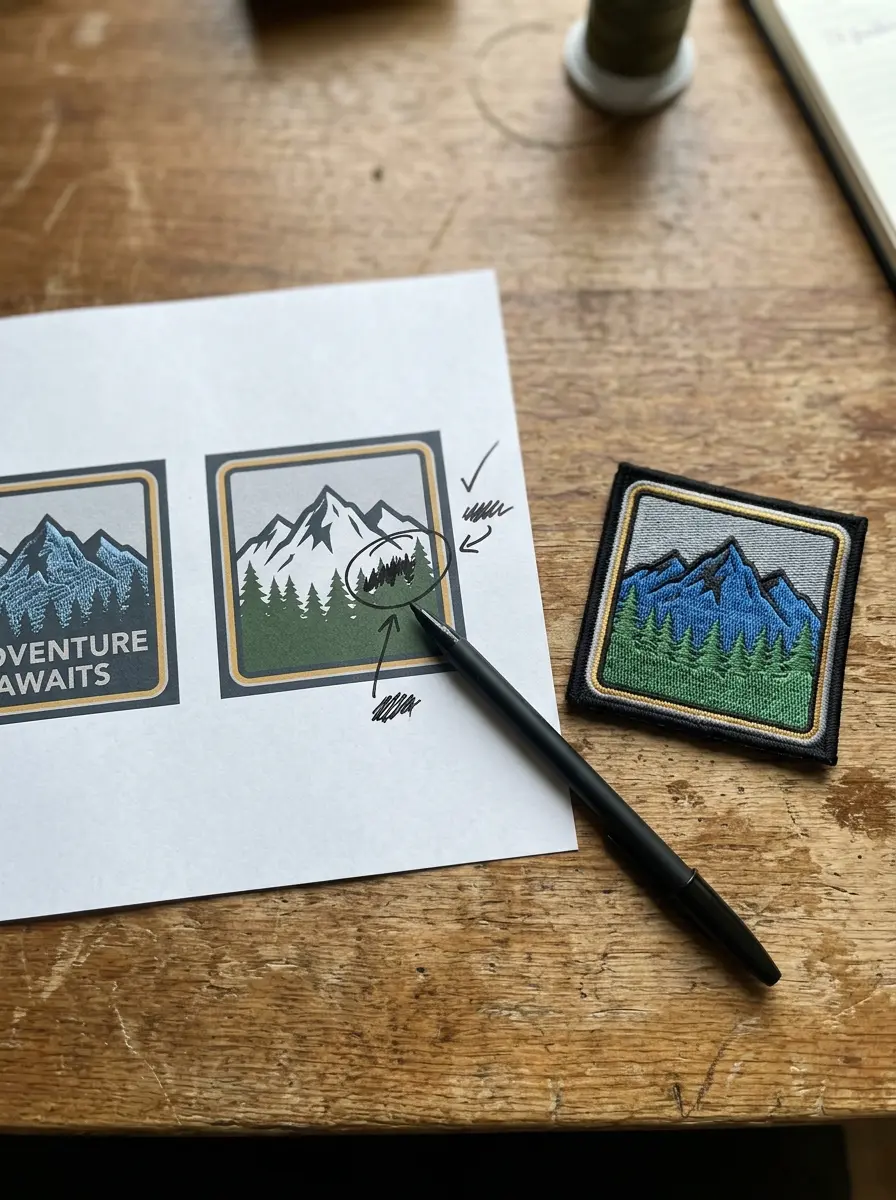
Check contrast before you submit. Dark text on a dark patch disappears. Light thread on a light base does the same. Print the design in grayscale to test it.
READY TO ORDER
Send Your Artwork to Our Custom Patch Maker
Upload Artwork
Send any common file format.
Approve Your Proof
Free digital proof within 24 hours.
We Ship Worldwide
Standard 10 to 14 business days. Rush in 5.
Upload your file. See a free Pantone-matched proof in 24 hours. Check pricing first if you like.
No minimum. Free proof in 24 hours. Unlimited free revisions.
COMMON QUESTIONS
Questions About Designing Your Own Patch
Can I design my own patch?
Yes. Send a logo, a sketch or an idea. We build a free digital proof in 24 hours. You revise until it is right, then approve for production. There is no minimum order, from 1 to 100,000.
How can I create my own patch?
Three routes exist. Order made to order, hand embroider, or use a machine. Our four steps cover the first route. Send your art, check the proof, then approve. The other two routes suit one-offs only.
How do I turn an image or logo into a patch?
Send a vector file or a high-resolution image. We digitize it. Simplify gradients and tiny detail first. Photos suit printed patches best. Embroidery simplifies them into flat color blocks.
What file format do you need for a custom patch?
AI, EPS and PDF are preferred. PNG, JPG, SVG, PSD, BMP and TIF are accepted. Any custom patch creator prefers vector files, and so do we. They give the cleanest result.
How can I use AI to design a patch?
Use AI for concepts only. Flatten colors, remove gradients, and enlarge text. Send a high-resolution file and we digitize it. Check that you own the rights to anything the tool produces.
Where can I find a free template for patch design?
Draw a shape outline in a free vector editor. Leave a small margin around your art. Fill shapes with solid color. See the artwork section above for file tips.
Can I turn my own artwork into a woven patch?
Yes. Send the same files. Woven patches suit fine detail. They hold small text well. Intricate logos work nicely. See the woven page for more.
Can I design my own leather patch?
Yes. Bold, simple art suits leather best. Fine lines tend to fade. Send your file and your proof shows the result. Adjust before you approve.
What should I know before designing an embroidered patch?
Use bold shapes and a limited color set. Keep text around 4 to 6 mm tall. Thread cannot blend shades. Your proof shows the final look. Change anything before you approve.
Can my own design carry an iron-on backing?
Yes. Any design can carry iron-on backing. Check your fabric first. Iron-on works best on cotton and denim. Synthetics may need sew-on.
How do I print my own patches?
A printable iron-on sheet works at home for one-offs. For photo art in quantity, ask us for printed patches. We make them to order from your file.
What does a home embroidery machine for patches cost?
Prices vary widely by brand and features. We quote no figure here. You need no equipment to order from us. Send your art and we do the stitching.
What company makes custom patches?
Custom manufacturers make them, including us. We make every patch to order from your art. You see a free proof first. Nothing is ready-made.
What is the best fabric to use for making homemade patches?
Twill or felt works well. Pick a stable woven fabric. Avoid stretch fabric. It distorts under the stitches and puckers.
What stabilizer to use when making patches?
Tear-away or cut-away suits stitched patches. Water-soluble suits freestanding designs. This is general guidance for home stitching. Match the stabilizer to your fabric weight.
What file should I send for a patch design?
Send AI, EPS or PDF if you can. PNG or JPG works as a fallback. Use the largest version you have. Send the original file, not a screenshot.
Can I add small text to my design?
Yes, but keep letters tall enough to stitch. Thin serifs and tiny words blur. Bold, simple fonts hold up best at small sizes.
KEEP EXPLORING